- Log in to TrueTMS on the web application. On the menu on the left of your home screen under the Other section, click on ‘Customers’
- Now click anywhere on the line of the customer you are wanting to add inventory goods to.
- After opening the Customer information page, locate and click on the pencil icon at the top right corner. This will enable you to modify the details of this customer.
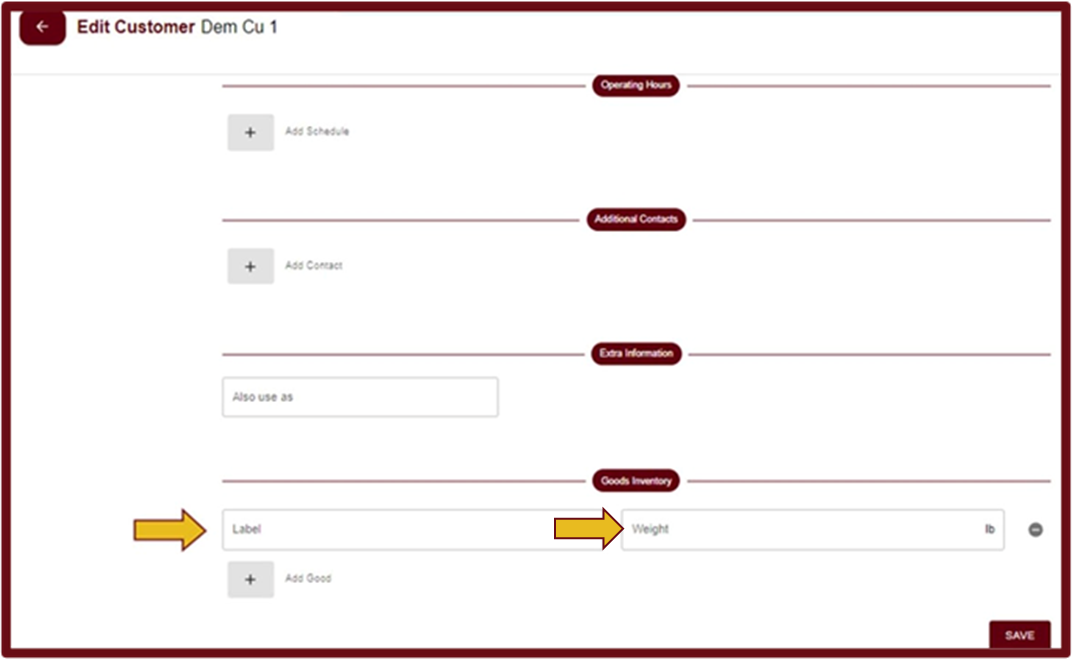
- Scroll down until you see Goods Inventory (a) and select the plus button just underneath it

- Provide a label and weight for the goods you are adding. If there are additional items you would like to add to this customer's inventory, simply select the 'Add Goods' button again.
- Once complete, select ‘Save’ .


