- Log in to TrueTMS on the web application. On the menu on the left of your home screen under the General section, click on ‘Loads’ (a) then the check block of the load you are wanting to assign to (b).
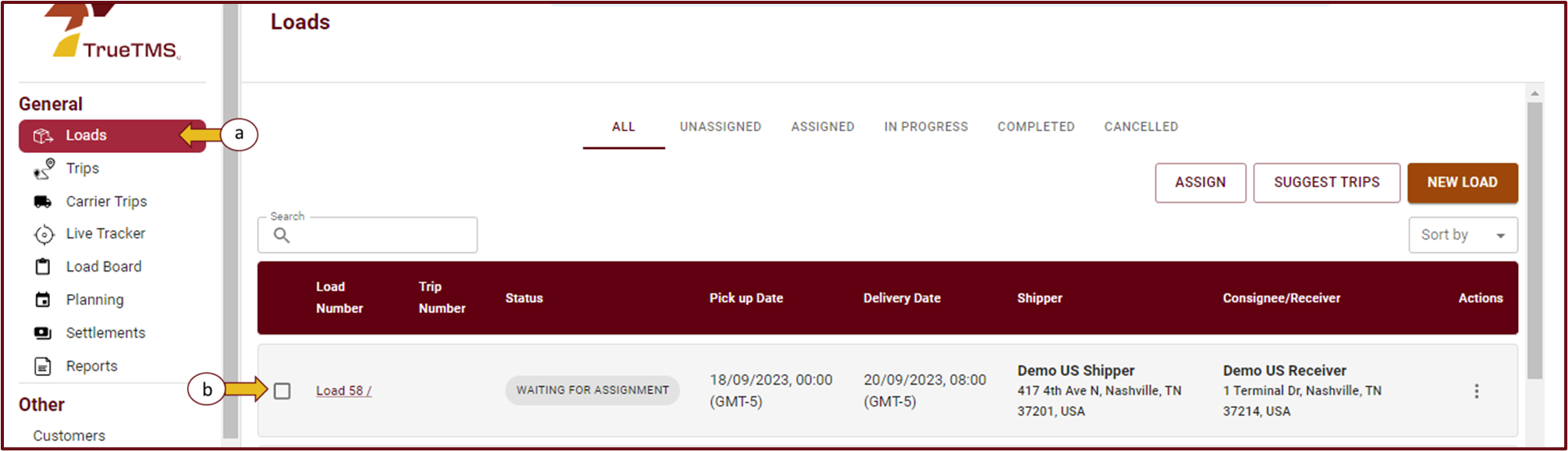
- Click ‘Assign’ in the top right corner of the screen.
- When the assignments pop-up window opens, you will have the option to select either a driver or a carrier for the load assignment (a). If you choose a driver, you will also need to select a tractor and trailer. However, if you choose a carrier, there is no requirement to select a trailer and tractor. To save your selection, simply click on 'Validate' (b).
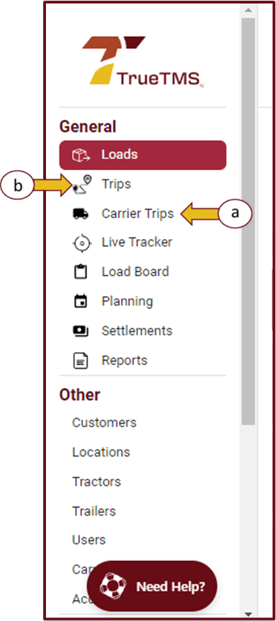
- A load that has been assigned to a carrier can be found under Carrier Trips, while loads assigned to your driver can be found under Trips from the left menu.