- First log in to your TrueTMS account. Navigate to the menu on the left side of your home screen. Click on the 'Carrier Trips' option under the General section. From there, select 'New Trip' to proceed.
- Once you open the carrier trips, loads will come up based on the tractor that the carrier has to offer (a), in this case it is a Conestoga
- You can either use the drag and drop function to move loads (a) into the block under 'Suggest Trip' (b) in order to create a trip with that carrier. Once you have followed this step, select 'Create Trip (c)
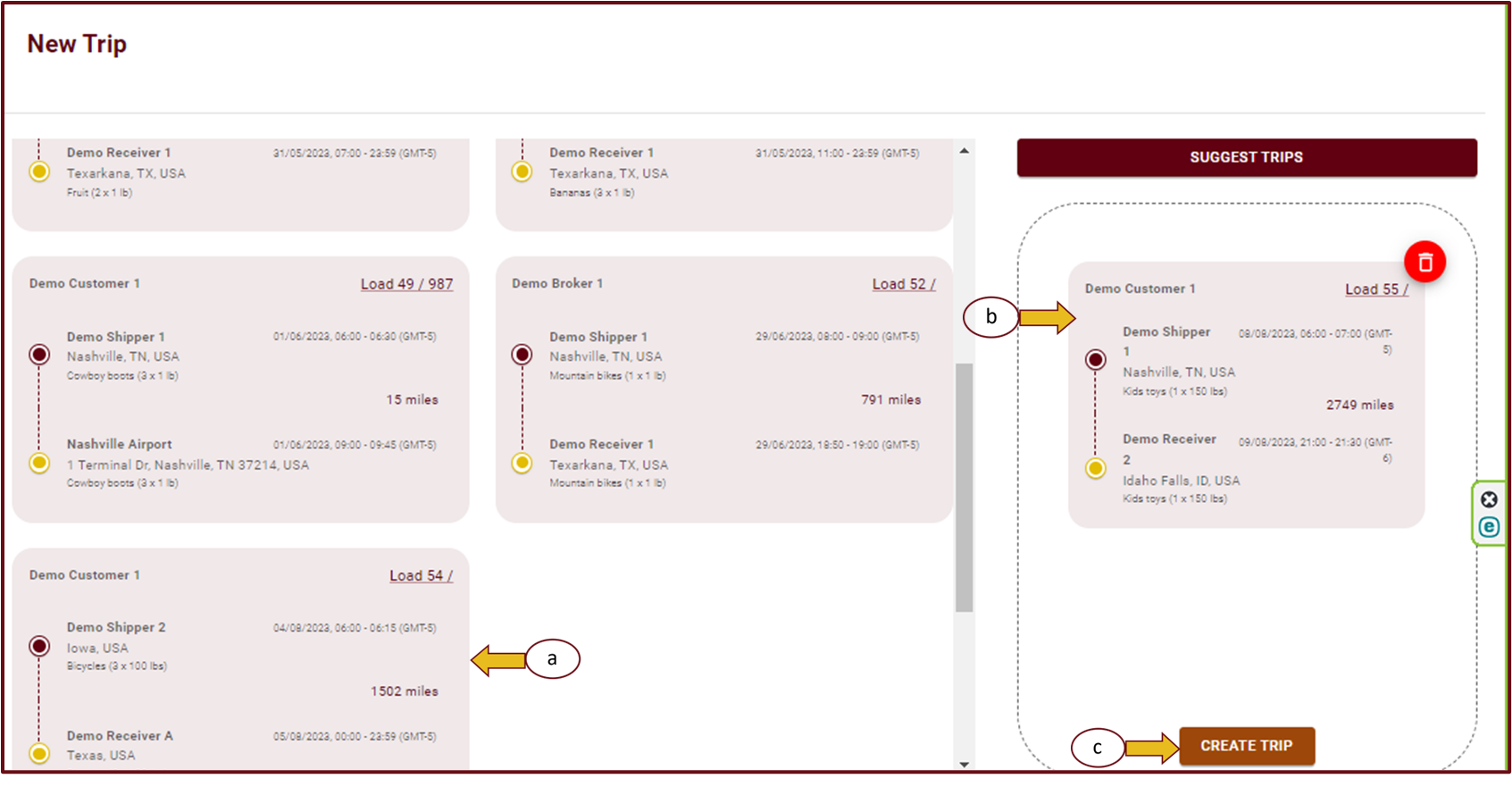
OR - Instead of the drag and drop option, click the 'Suggest Trips' bar to allow the system to suggest trips for you based on location
- Now all the suggested trips will be available to select (a) and you can simply select 'Create The Trips'
- Now that your Trips are set up, you are ready to assign them to the carrier. To do this, navigate to 'Carrier Trips' (a) and click anywhere on the unassigned load that you wish to assign (b)

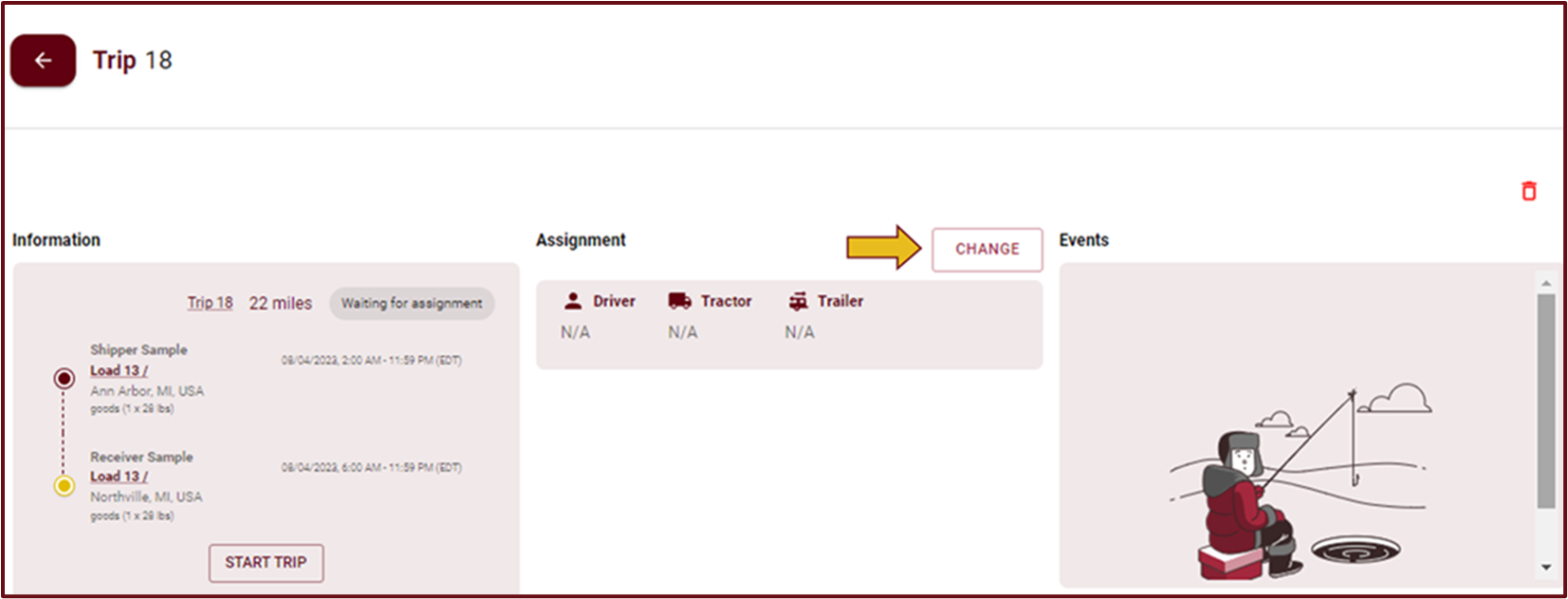
- Once you've reached this page, simply click 'Change' in the assignments section
- Select 'Driver/Carrier' and then select the relevant carrier under the 'Carrier' list in the same section (a). Select 'Validate' (b) to save


