

- Log in to TrueTMS on the web application. On the menu on the left of your home screen under the Account section, click on ‘Settings’.
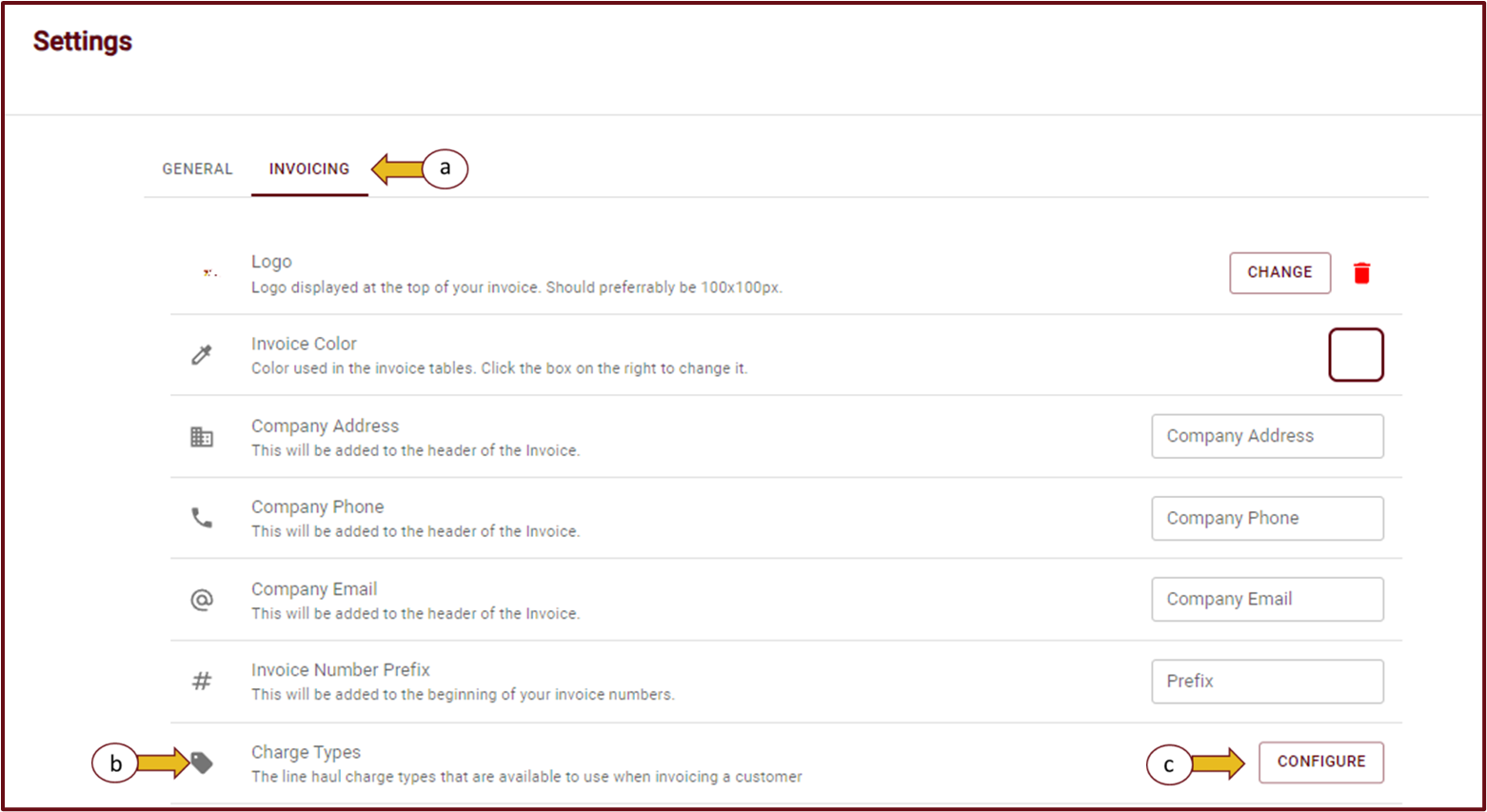
- After opening the settings page, from the top tab menu choose 'Invoicing' (a). Scroll down to Charge Types (b), then click on 'Configure' (c).
- Select ‘Add Charge’
- Assign a Label (a) to your new charge, input the Units and Rate (b), and then proceed to select ‘Validate’ (c).
- Now your new charge will be added onto the visible list and you can select ‘Submit’.
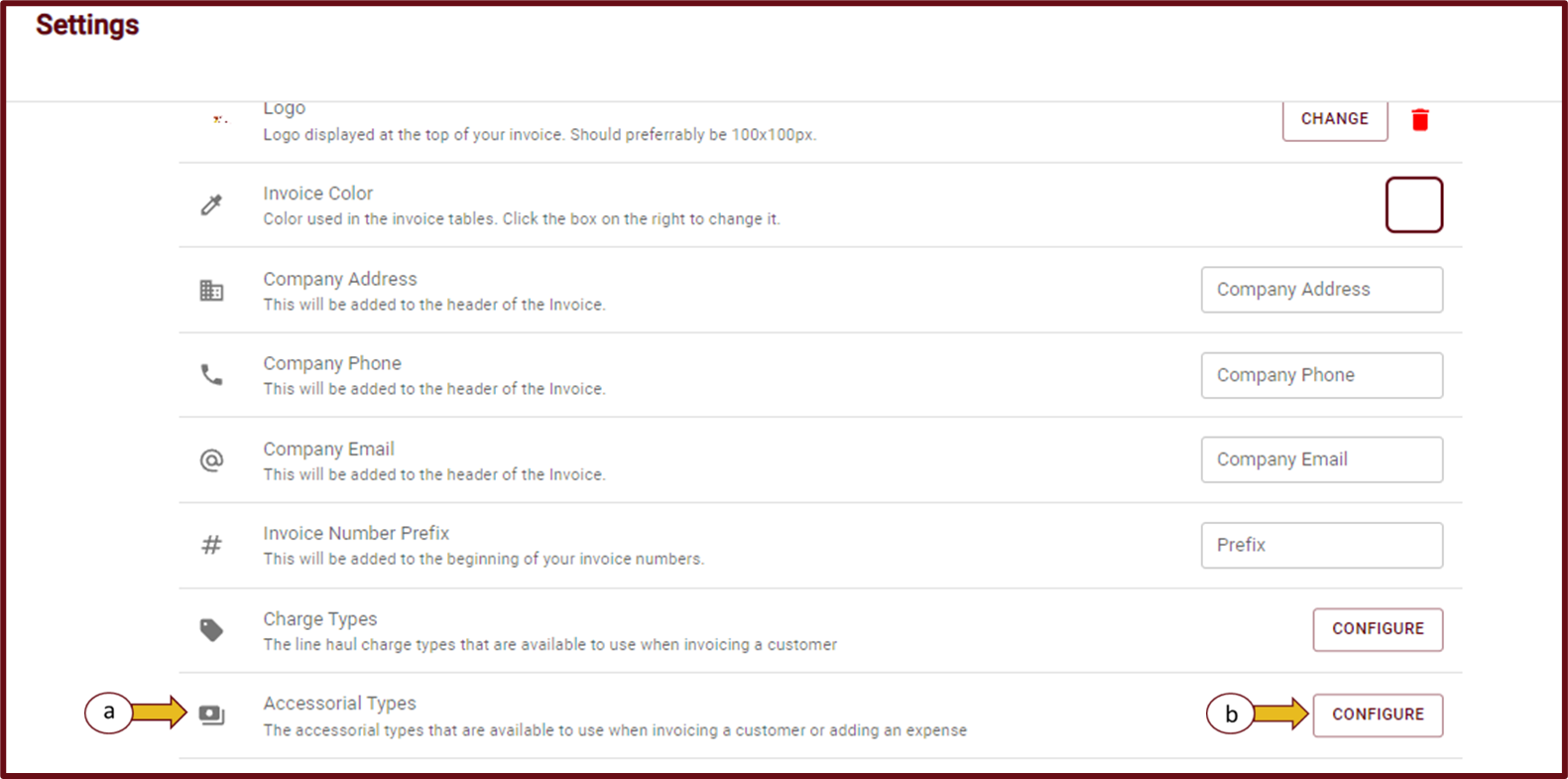
- The same process is repeated for Accessorials. In ‘Settings' go to 'invoicing', scroll down to Accessorial Types (a) and select Configure (b).
- Select ‘Add Expense’.
- Enter a Label for your expense (a), choose a unit and enter the rate (b), click 'Validate' to save(c).

- Now your new expense will be added onto the visible list and you can select ‘Submit’.


