- Log in to TrueTMS on the web application. On the menu on the left of your home screen under the Account section, click on ‘Settings’.
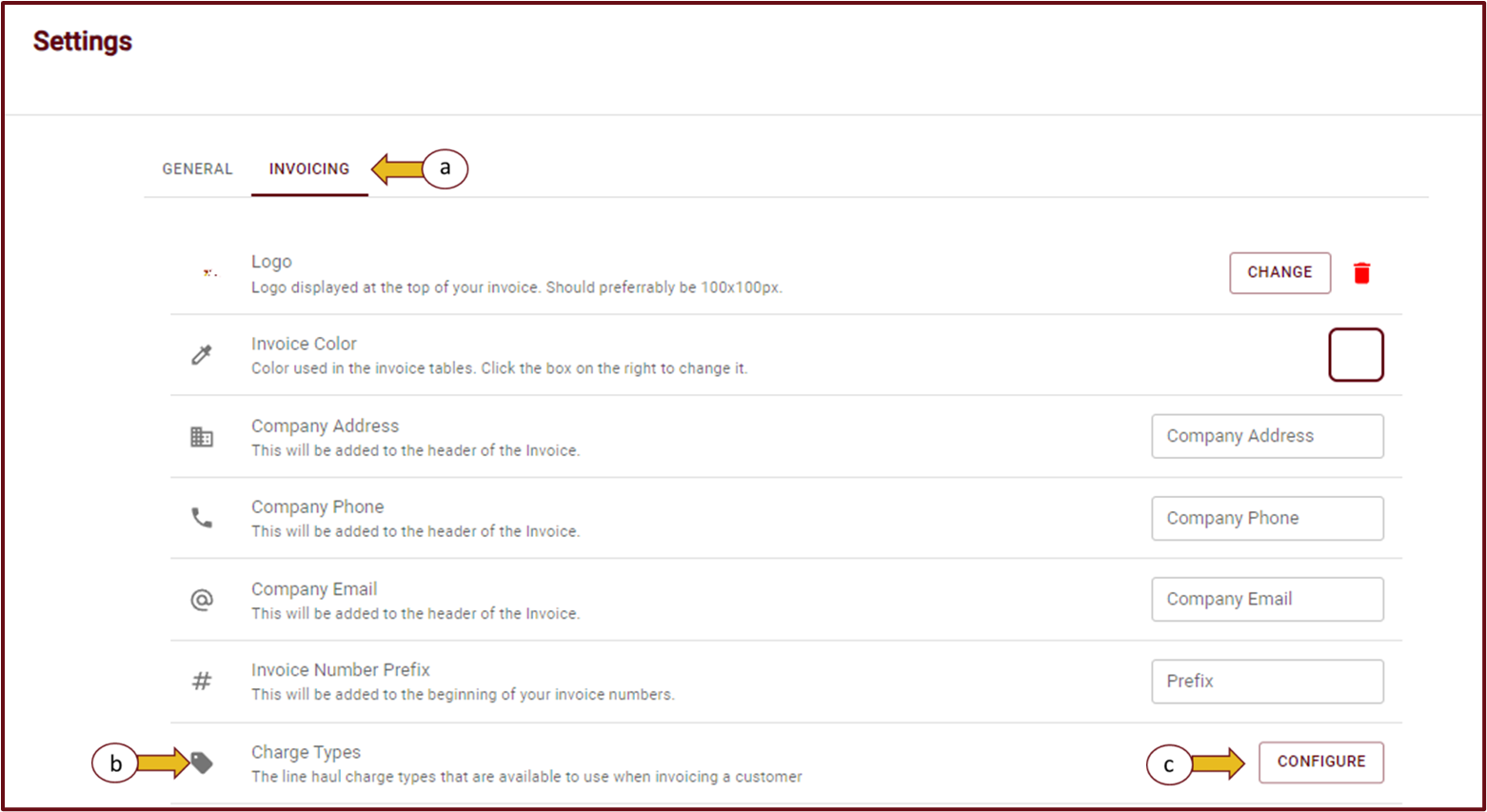
- After opening the settings page, from the top tab menu choose 'Invoicing' (a). Scroll down to Charge Types (b), then click on 'Configure' (c).
- Once the page opens, select the pencil icon to edit the Charge/Accessorial.
- A window will be displayed with the relevant Charge/Accessorial, providing you with the ability to edit or modify it. Once you have made the necessary changes, click 'Validate'.
- Now that you have made and saved your changes, click “Submit” for these changes to populate in your Charges/Accessorial lists.
- To remove a custom Charge/Accessorial, simply follow the same steps outlined above, but instead of choosing the pencil icon to edit, select the bin icon to delete.
- A cautionary window will be displayed, select 'Yes, Delete'.
- Now that you have made and saved your changes, click “Submit” for these changes to populate in your Charges/Accessorial lists.


