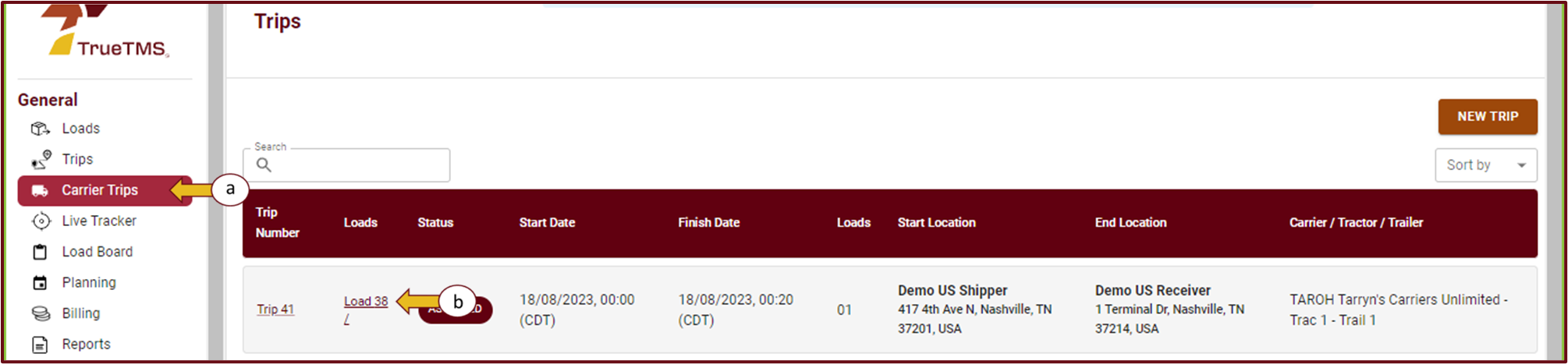
- To access TrueTMS on the web application, log in first. Then, navigate to the menu on the left side of your home screen and select 'Carrier Trips' under the General section. Once the page loads, click on the specific load for which you would like to generate a Ratecon.
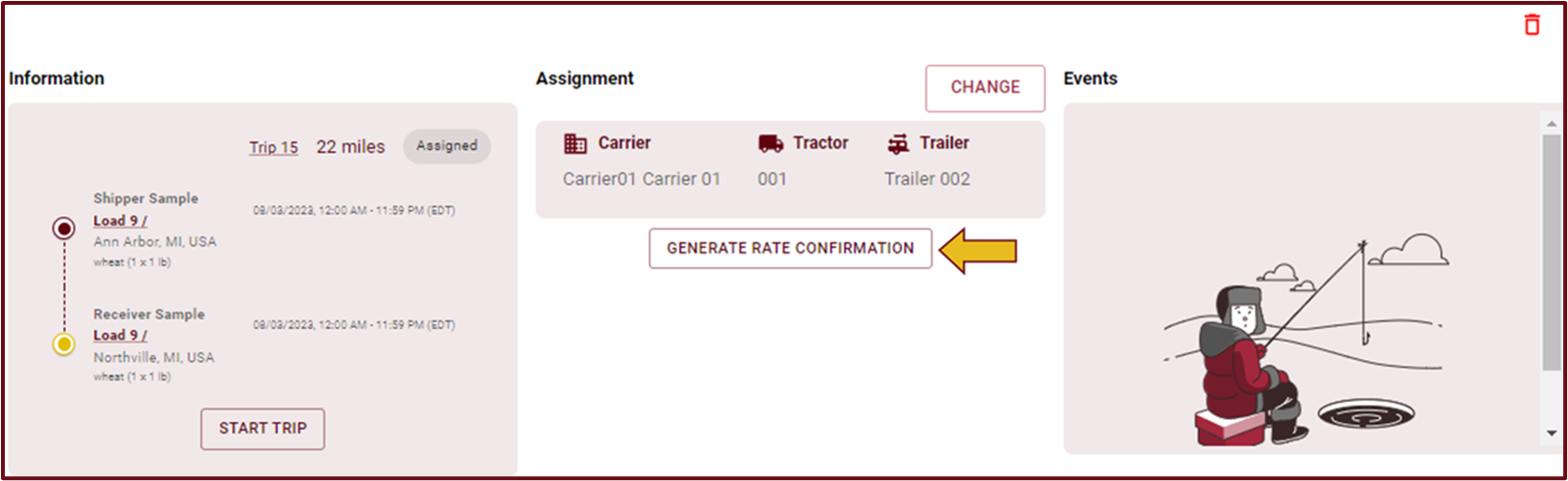
- After opening the loads screen, you will see that the load is assigned to your carrier under the Assignment section. To proceed, simply select 'Generate Rate Confirmation' located just below the carrier assignment.
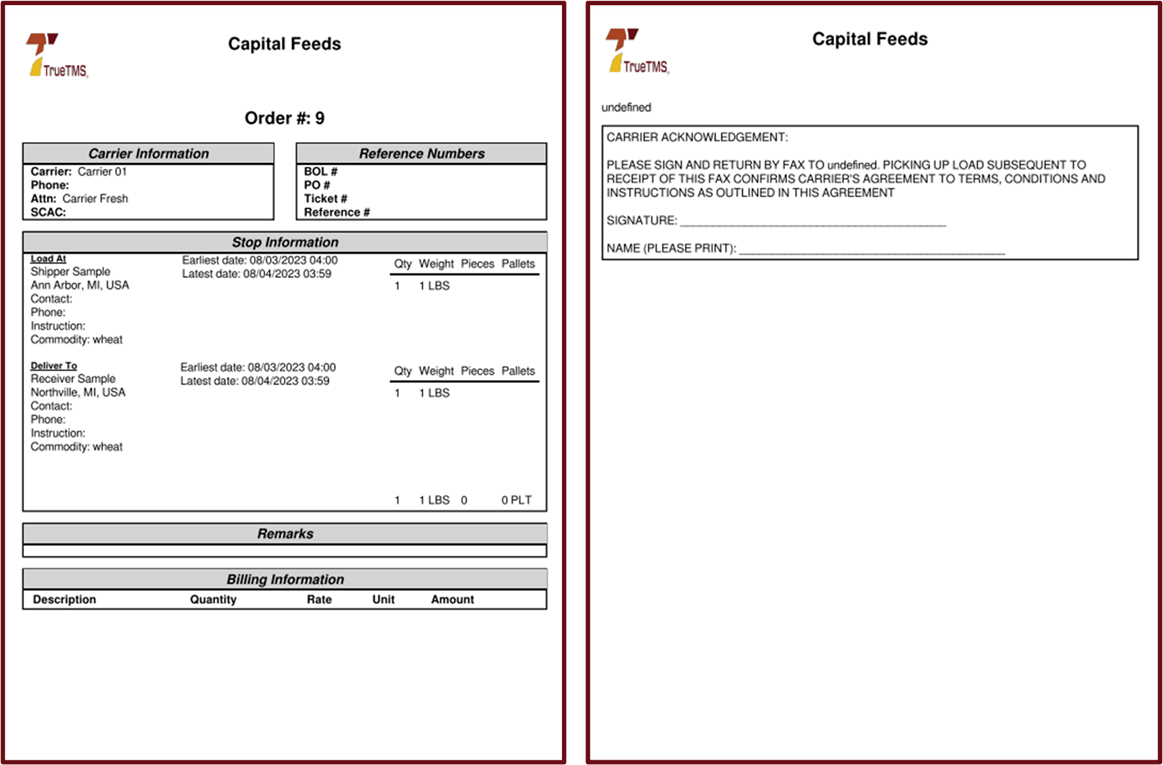
- The Ratecon will open in a separate PDF file format, which you are able to download and save to your computer if you wish.
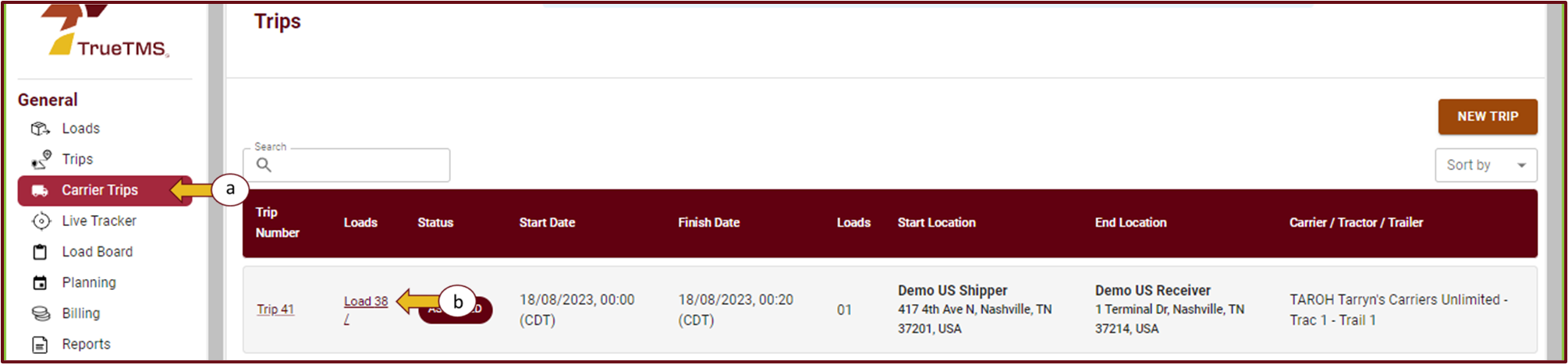
- If you would like to include the downloaded Ratecon as a document for this load, navigate to the menu on the left side of your home screen and choose 'Carrier Trips' under the General section. Then, click on the underlined load number of the specific load where you want to save the Ratecon.
- Once the loads page has opened select 'Documents & Notes' (a) from the top tab menu. Navigate down to the Documents section and select 'Upload Document'
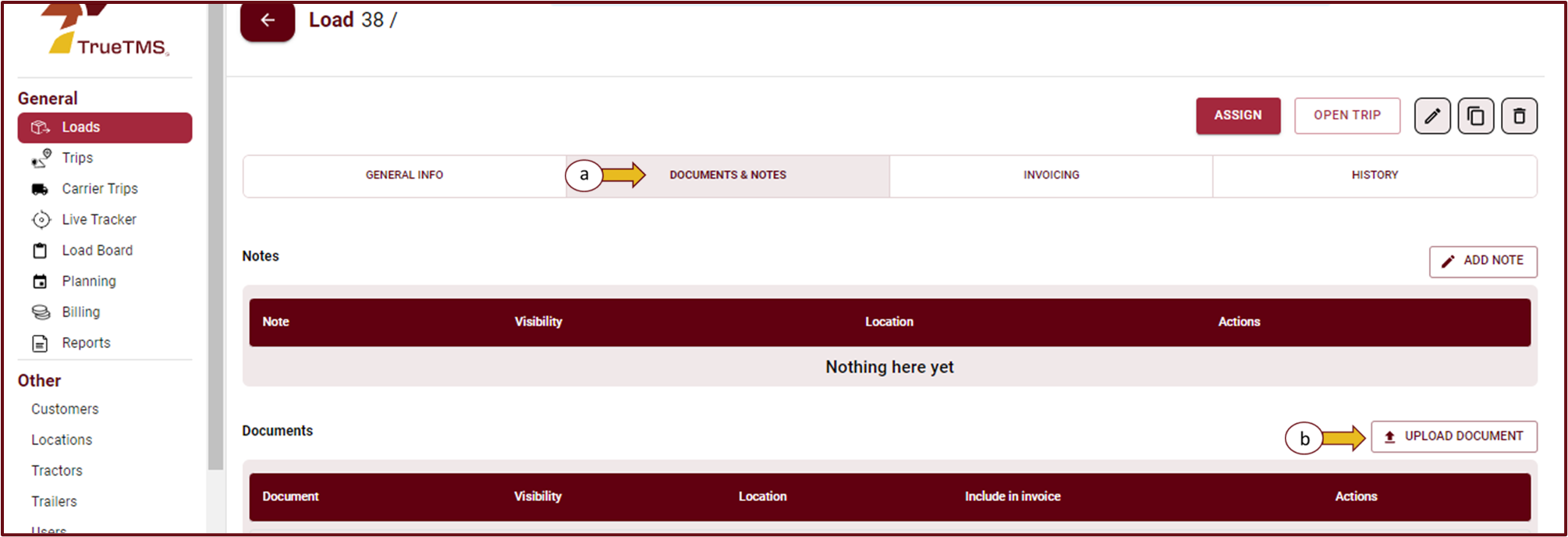
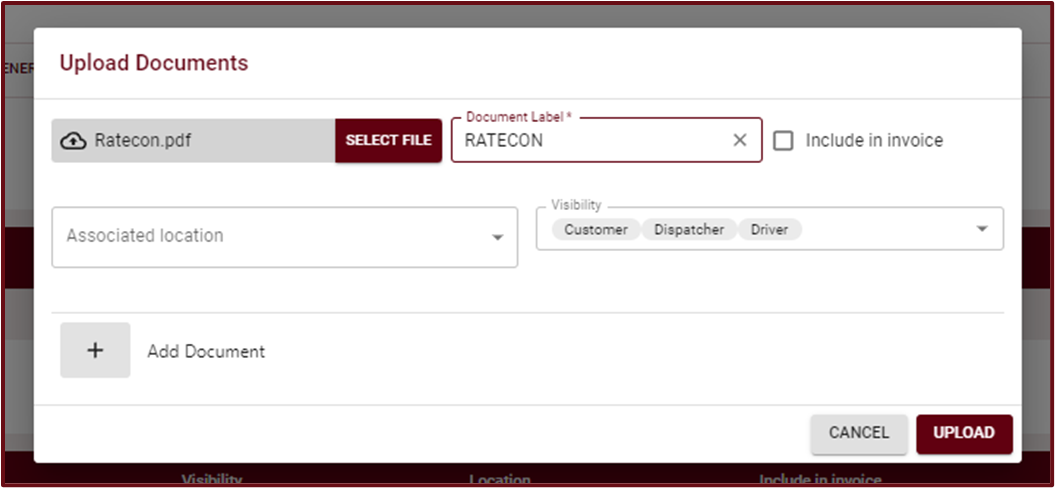
- To upload the file, you have the option to either drag and drop it or select it manually. Fill in all the necessary information in the pop-up window. If you want the Ratecon to be attached to the invoice, remember to check the box next to Include in invoice before selecting 'Upload'.
Demo: