- Log in to TrueTMS on the web application. On the menu on the left of your home screen under the General section, select ‘Customers’ / ‘Locations’ / ‘Tractors’ / ‘Trailers’ (a)
From the menu at the top, click on the ‘Import’ button (b)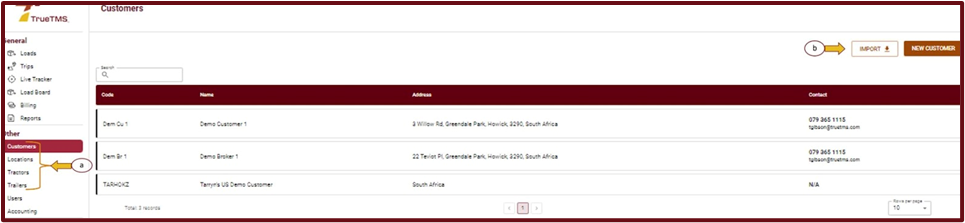
- Select ‘Download Model' (a). Once the file has downloaded, save it and copy paste your details into the relevant columns in the model.
Now you can either drag and drop the saved Excel file into the block provided or select ‘Upload’ (b) - Once uploaded, select ‘Validate’.
- If all the information in the spreadsheet is correct, a notification will appear confirming that no errors were detected. Simply click on the 'Import' button located at the bottom right.
- Another notification will appear at this stage, indicating the number of rows successfully imported. Simply click on the 'Finish' button.
- The imported data will now be accessible in TrueTMS under the appropriate sections for 'Customer', 'Locations', 'Tractors', or 'Trailers'.


