- Log in to TrueTMS on the web application. On the menu on the left of your home screen under the General section, click on ‘Loads’ (a)
To initiate the splitting process, click on the ‘more’ option (represented by three dots next to the load) that you wish to split (b). Now select the ‘Split’ option (c).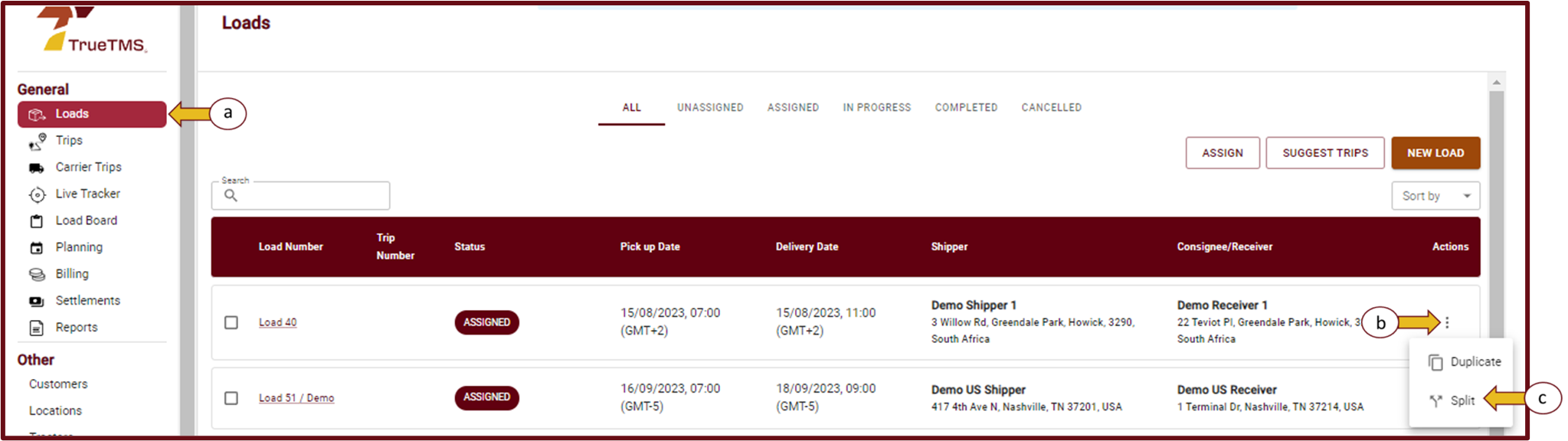
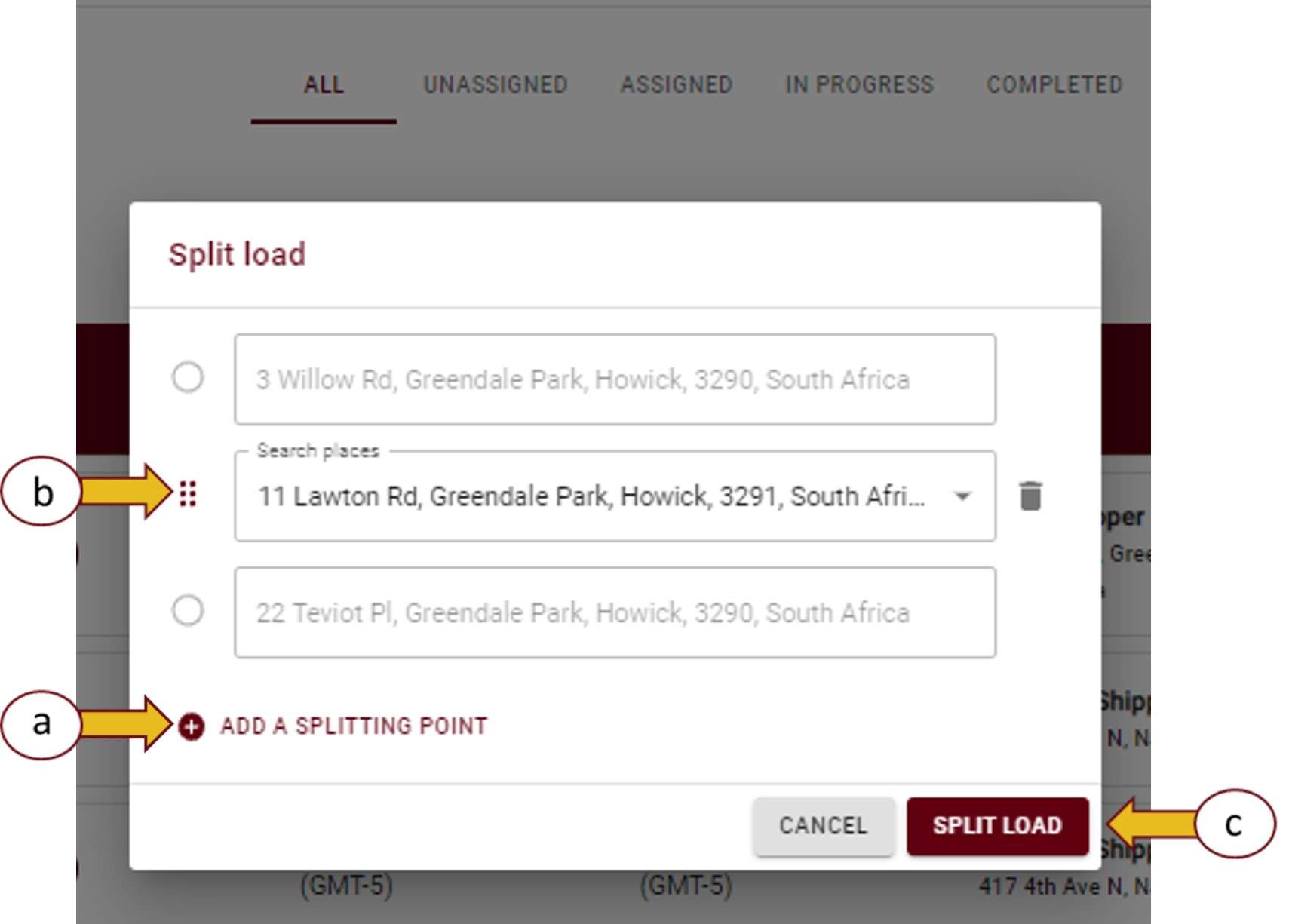
- Select ‘+Add splitting point’ (a) and type the address where the split is to take place in the block provided. Using the options button (b), drag the splitting point up or down to where the load is to be split. Select the ‘Split Load’ button (c)
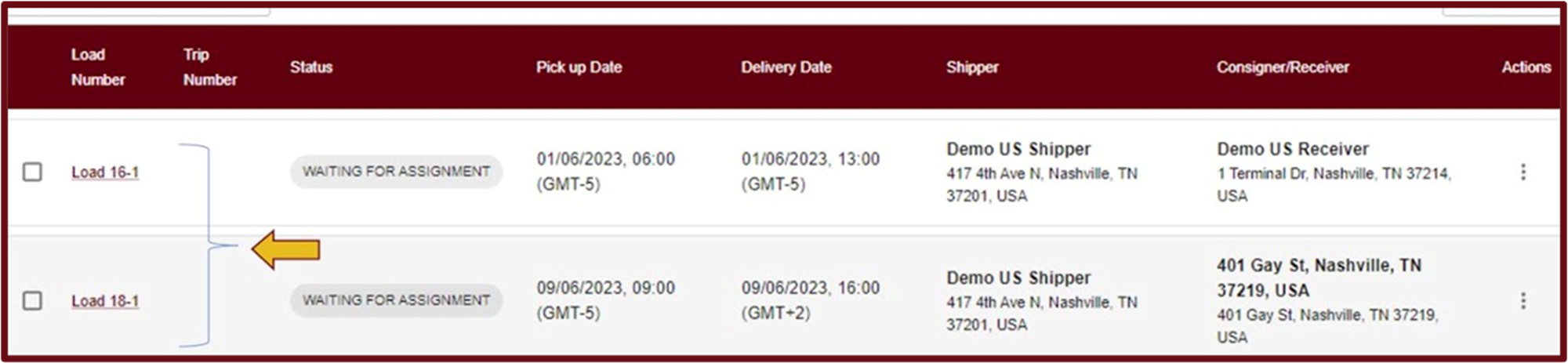
- You will see that the load is now split into 2 loads under your ‘Loads’ page
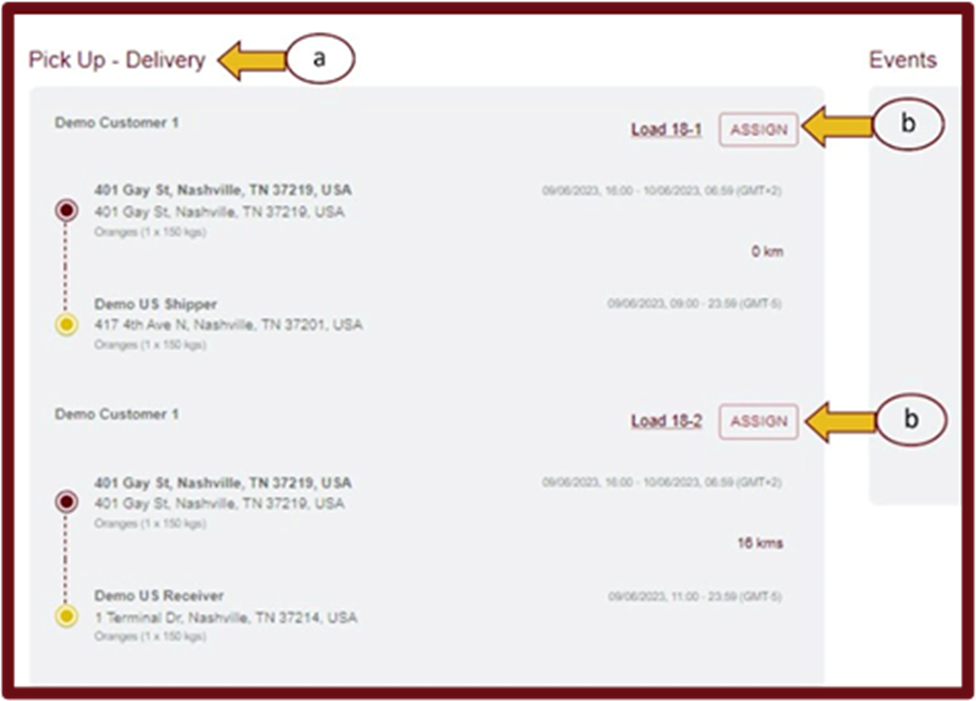
- To assign the splits, you have two options. You can either click on 'waiting for assignment' from your Loads page or go back into the load. Once inside, scroll down to Pick Up - Delivery (a) where you will find the options to assign the individual splits to a driver, trailer, and tractor (b).
- Complete the assignments and select ‘Validate’
- From your Loads page you should see both loads are now assigned and each of the ‘legs’ (splits) of this load has its own trip.


It's important to note that although this load has been split, it will be invoiced as a single load. The charges for each split will automatically be included on the invoice for the other load as well.